Plex Discord Status: Show What You're Watching on Plex in Discord
By Mika Sato · November 5, 2026
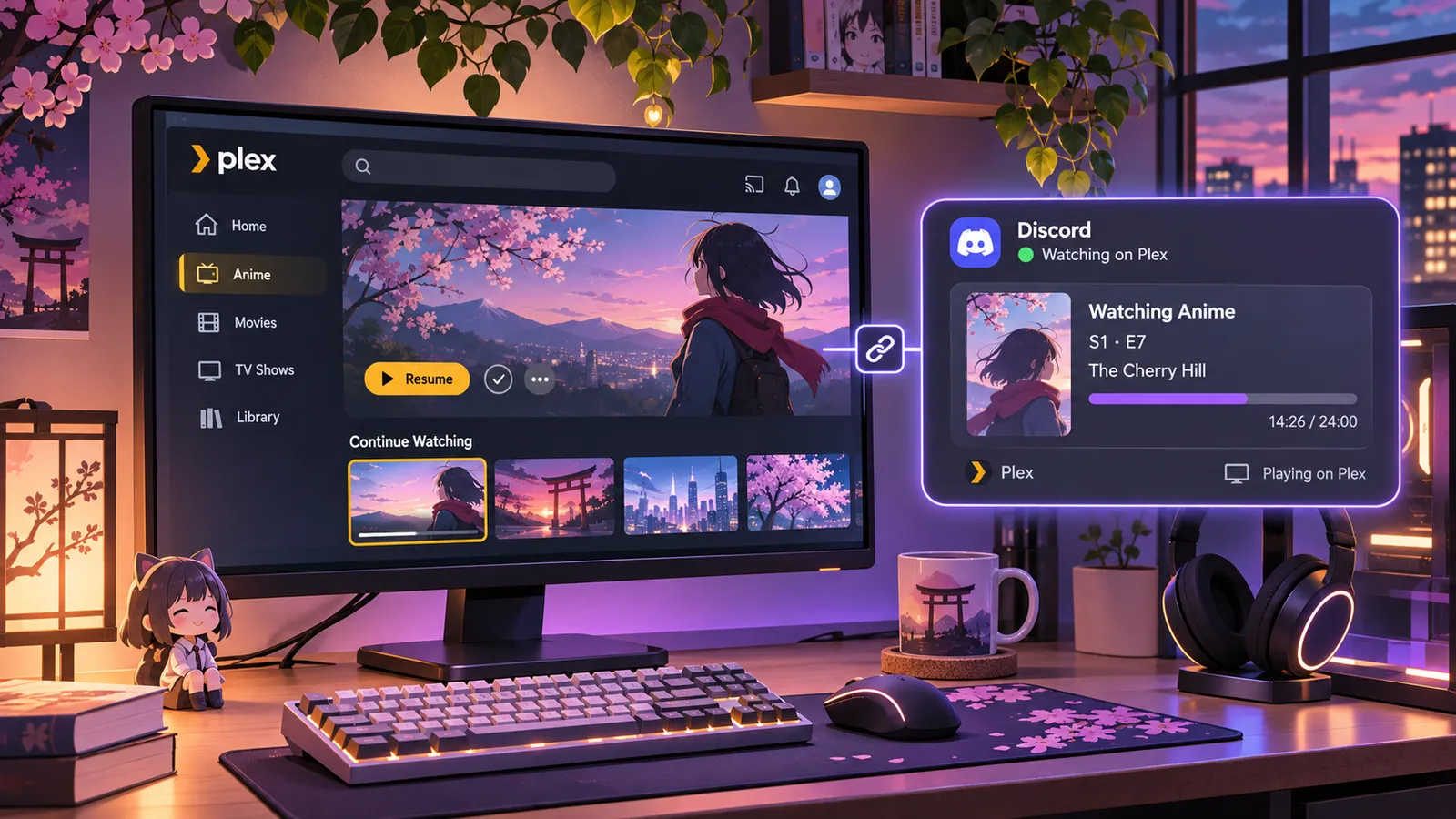
Discord makes it easy to show friends what game you're playing, but what if you'd rather share the anime, movie, or TV series you're watching? If you use Plex to organize and stream your media, a free Windows utility called Plex Discord Status offers a convenient answer.
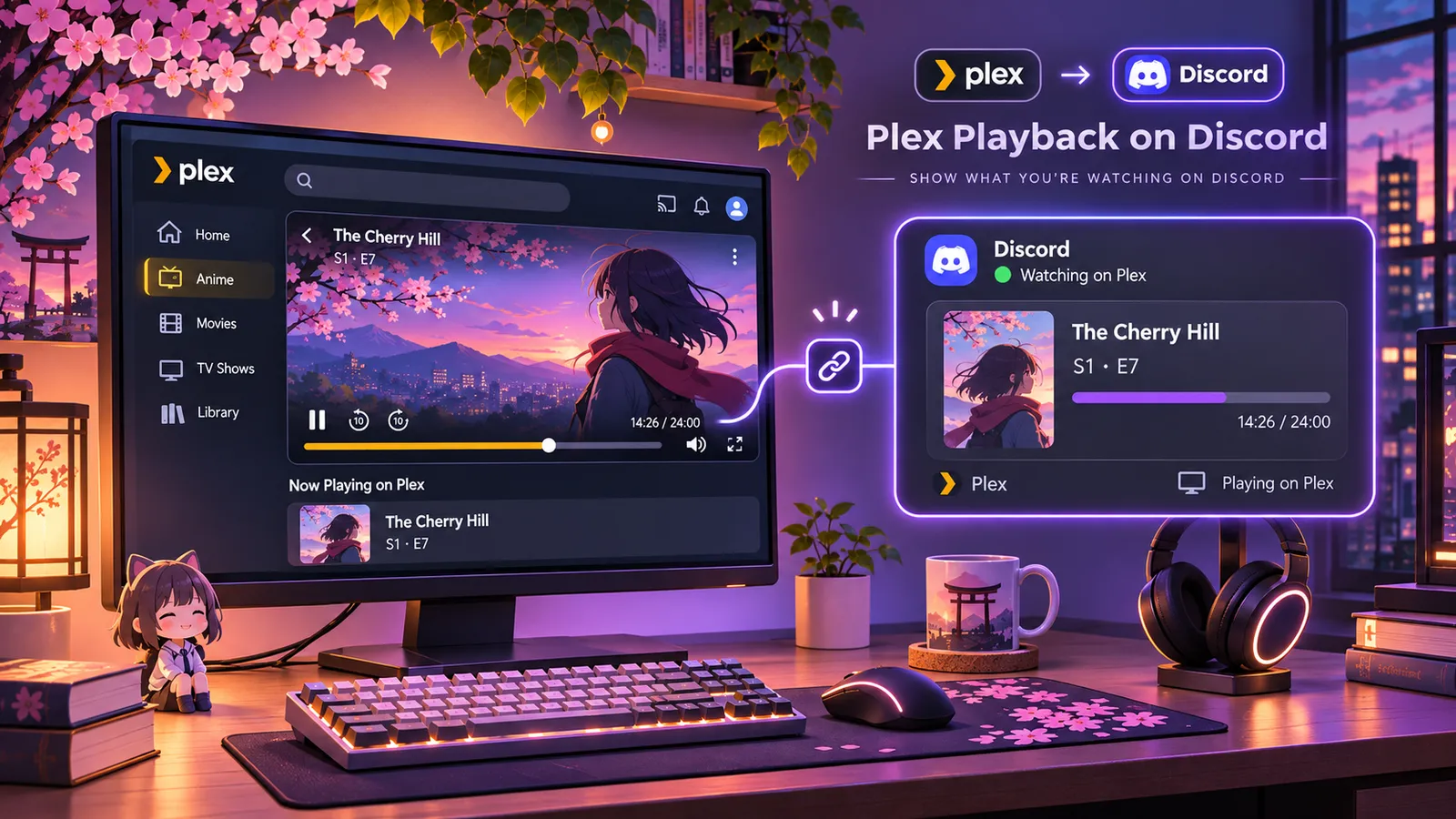
The application connects your Plex playback activity to Discord Rich Presence, turning your currently playing media into a more informative Discord status. Instead of a generic activity label, friends can see details such as the title, episode information, artwork, and playback progress.
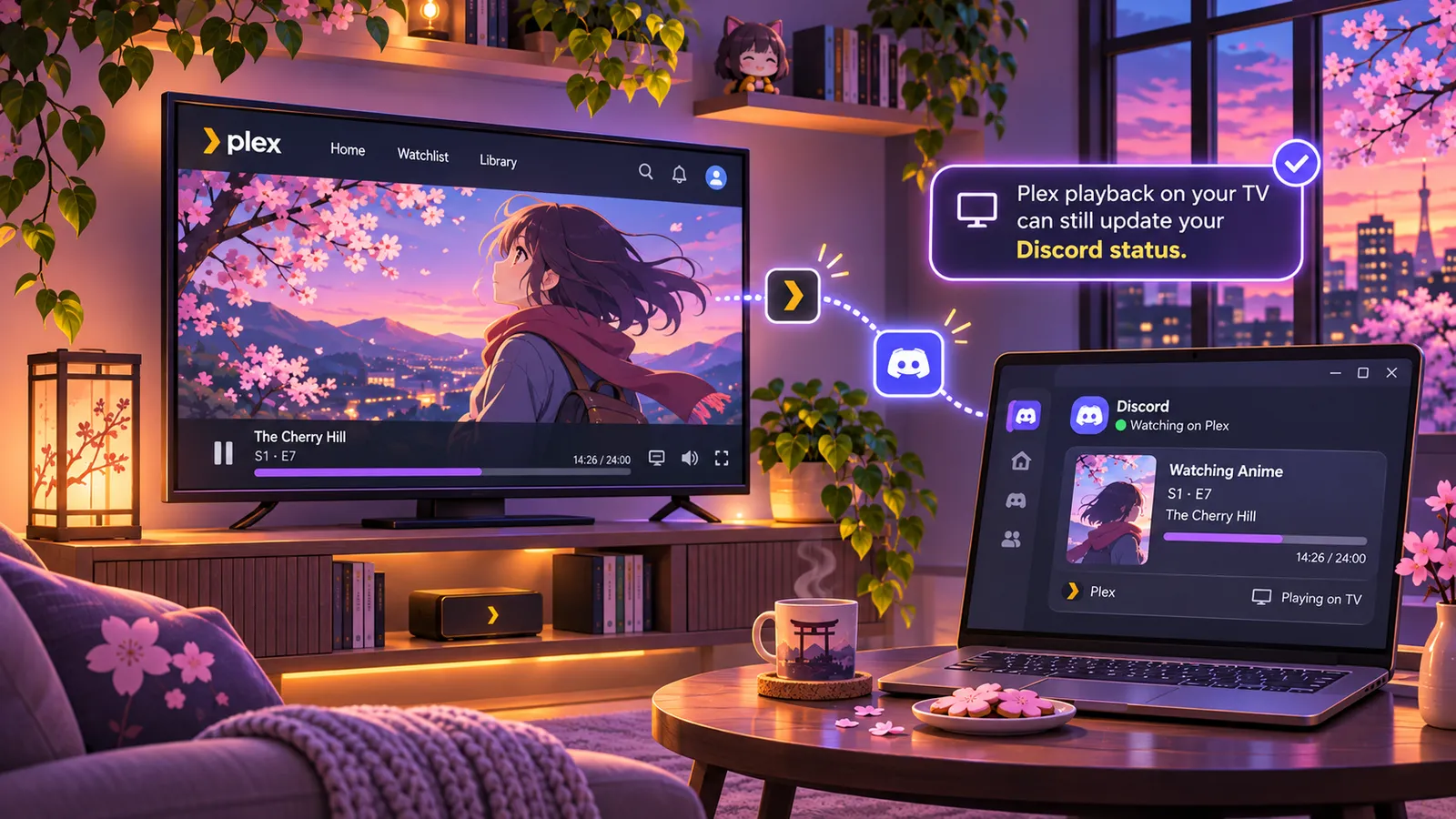
Better yet, it's designed to work with playback across Plex devices, so you don't have to watch directly on your computer for your Discord status to update.
Project: Plex Discord Status on GitHub
Download: Latest Windows release
What Is Plex Discord Status?
Plex Discord Status is a free, MIT-licensed Windows application that periodically checks a Plex Media Server for playback activity and reflects that activity in the Discord desktop app.
For anime fans with a carefully curated Plex library, that means your Discord profile can show what you're watching without manually changing your status every time you start another episode. It also works with movies and other media supported by the application, including music artwork where available.
For example, when you're watching an episode of an anime, the Rich Presence display can include the series name, season and episode information, poster artwork, and a progress indicator. When you stop watching, the status is cleared automatically.
This is a third-party integration, not an official Plex or Discord feature.
The Features That Make It Worth Trying
The biggest appeal is how much information the app can display while staying out of the way. According to the project's documentation, key features include:
- Rich Discord activity: Display the media title, episode details, artwork, and playback progress.
- Support for different Plex players: Playback can come from a browser, phone, or TV, while the utility runs on your Windows computer.
- Automatic updates: The app checks Plex every few seconds and clears the activity when playback ends.
- Server discovery: A setup window attempts to find your Plex server automatically, with manual connection and Plex sign-in options.
- Account and player filters: Choose whose Plex activity counts, or limit sharing to particular players.
- Pause controls: Decide whether paused playback should remain visible, and temporarily disable sharing from the system tray.
- Windows startup option: Have the utility launch when you sign in.
For anyone who moves between a living-room TV and a desktop setup, the cross-device behavior is particularly useful: Discord can show your Plex session without needing Discord installed on the playback device itself.
Why Anime Fans Might Love This
Anime is naturally social. Friends compare seasonal shows, recommend hidden gems, and ask each other what they're watching next. Plex Discord Status can make those conversations happen more organically.
Imagine watching an episode from your own Plex library and having the title appear in Discord. Someone notices the series, sends you a message, and suddenly you're talking about an underrated show neither of you expected to discuss that night.
The inclusion of poster artwork is a nice touch, especially for anime where recognizable key art makes a series easier to spot at a glance. Playback progress adds another layer of detail, making the activity feel more like the rich game statuses Discord users already know.
Of course, displaying your current viewing also means revealing it to people who can see your activity. The app's pause-sharing control and Plex username filter help give users a say in what gets displayed.
How to Set Up Plex Discord Status on Windows
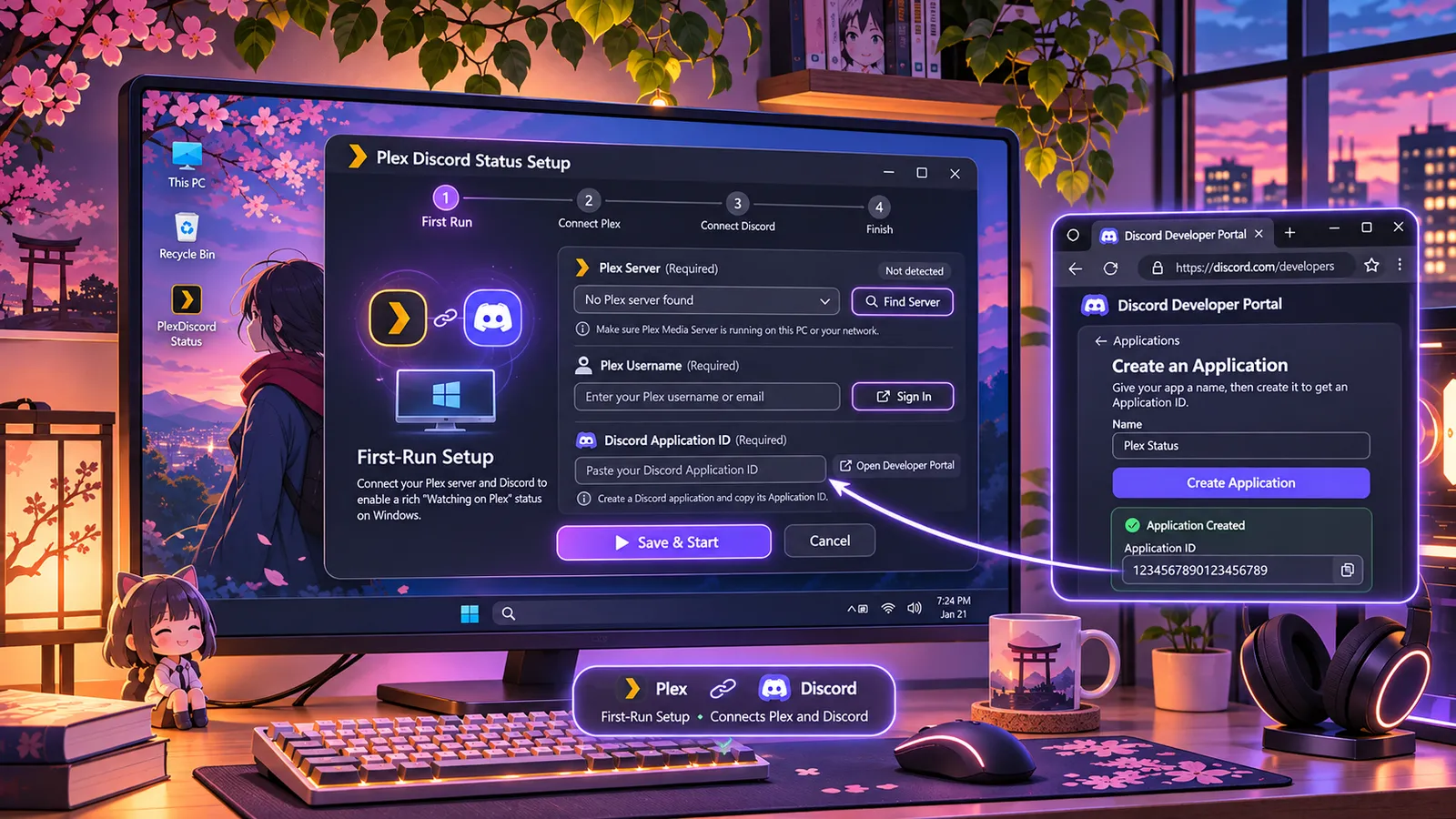
Getting started doesn't require manually editing configuration files. The published v1.0.0 release provides a standalone executable with a first-run settings window.
- Visit the latest GitHub release and download PlexDiscordStatus.exe.
- Place the executable in its own permanent folder, such as
Documents\Plex Discord Status. Settings are stored alongside the program. - Launch the application. Its settings window will attempt to detect your Plex server. If necessary, enter your server address or use the built-in sign-in option.
- Enter your Plex username so the utility shows your activity rather than someone else's sessions on a shared server.
- Open the Discord Developer Portal, create a new application (for example, named
Plex), and copy its Application ID into the setup window. - Click Save and start. In Discord's desktop settings, go to Activity Privacy and make sure Share your detected activities with others is enabled.
You'll need Windows, the Discord desktop application, and access to your own Plex Media Server. The Windows utility needs to keep running in order to update Discord, even if the Plex playback itself happens on a TV or mobile device.
A Discord Application ID is not the same as a bot token or public key; the setup requires the Application ID. Creating one through the Developer Portal is free.
Customize What Appears on Discord
Once configured, Plex Discord Status lives in the Windows system tray. Its icon indicates whether sharing is active or paused, and the tray menu lets you change settings, pause or resume sharing, view logs, and quit.
There are several options worth exploring. You can turn poster artwork on or off, choose whether to keep a paused title visible, and select which Plex account or player should affect your Discord presence. That's useful on shared servers where multiple people might be streaming different things simultaneously.
The app also supports a fallback image when it can't find artwork. For technically inclined users, the configuration file includes a polling interval and other settings, though the normal setup window handles the main controls.
If you prefer running source code, the repository also offers a Python version. It requires Python 3.8 or later and uses the standard library, with batch-file shortcuts to launch the utility, open settings, preview the status, or manage startup behavior.
Troubleshooting: Why Isn't My Plex Activity Showing on Discord?
If nothing appears, start with the basics: confirm the Discord desktop app is open, check its activity-sharing setting, and verify that the Windows utility is running.
If the app cannot connect to Plex, confirm the server address is correct and accessible from the PC running the utility. If Plex rejects the connection, open the app's settings and use the Plex sign-in option. If Discord rejects the Application ID, copy it again from the Developer Portal rather than using the application's public key.
For further troubleshooting, the app writes a plex_discord.log file in its folder.
Because the downloadable executable is from an unsigned publisher, Windows SmartScreen may display a warning. Only run files you've obtained from a source you trust, and consider reviewing the open-source code or running the Python version if you prefer.
Is Plex Discord Status Free and Open Source?
Yes. The GitHub project is released under the MIT License, and the repository provides its source code alongside the downloadable Windows executable. Users can inspect the implementation, report issues, and follow future changes through GitHub.
The release page also publishes a SHA-256 checksum for the executable, which can help you verify that a downloaded file matches the published release.
The project is not affiliated with Plex or Discord. It's an independent integration built around the functionality those platforms make available.
A Small Utility That Makes Plex Feel More Social
Plex Discord Status solves a simple but relatable problem: Discord is great at showing what you're playing, but sharing what you're watching shouldn't require updating your status by hand.
Its combination of anime-friendly artwork, episode details, playback progress, cross-device Plex monitoring, and straightforward Windows setup makes it an appealing utility for fans who already use Plex and Discord together.
If you want to give it a try, visit the Plex Discord Status GitHub repository or grab the latest release. Your next anime marathon might just become a conversation starter.